VM Blast App Download: Android APK Install and iOS Setup for PH Players
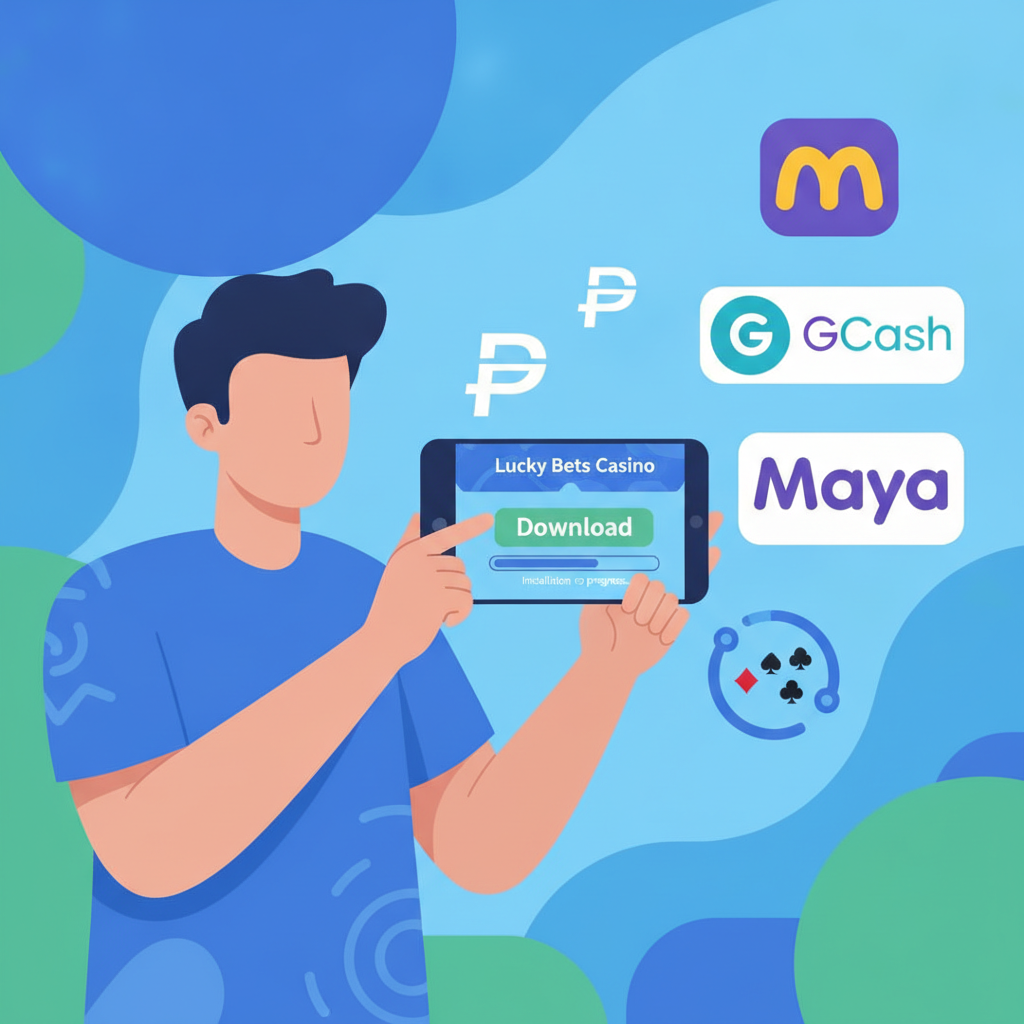
Where to Find the Official VM Blast APK
VM Blast does not publish an app on the Google Play Store. Philippine players need to download the Android APK file directly from the VM Blast website or a link shared through the operator's official social media channels.
Open your mobile browser—Chrome or Firefox—and navigate to the VM Blast homepage. Look for a prominent "Download App" or "Mobile App" button, usually placed at the top of the screen or in the main menu. Tap that button to start the APK download.
Some players receive a direct APK link via Viber, Telegram, or SMS from VM Blast customer support. Always verify the web address starts with the official VM Blast domain before downloading. Third-party app stores and file-sharing sites often host outdated or modified APK files that can cause login problems or pose security risks.
The APK file is typically between 40 MB and 80 MB. Download over Wi-Fi if you have a limited mobile data plan. Once the download completes, you will see a notification or the file will appear in your Downloads folder.
Enabling 'Unknown Sources' on Android and Installation Steps
Android blocks installation of apps from outside the Play Store by default. You need to allow your browser or file manager to install unknown apps before you can open the VM Blast APK.
For Android 8.0 and newer:
- When you tap the downloaded APK file, Android will show a prompt that says "For your security, your phone is not allowed to install unknown apps from this source."
- Tap Settings in that prompt.
- Toggle on Allow from this source. This permission applies only to the app you are using to install the APK—usually Chrome, Firefox, or your file manager.
- Press the back button to return to the install screen.
- Tap Install and wait 10–20 seconds for the process to finish.
- Tap Open to launch VM Blast, or tap Done and find the VM Blast icon on your home screen or app drawer.
For Android 7.1 and older:
- Open Settings → Security.
- Find the option labeled Unknown sources and toggle it on.
- Confirm the warning prompt.
- Go to your Downloads folder, tap the VM Blast APK file, and tap Install.
After installation, you can turn off the unknown sources permission if you prefer. The VM Blast app will continue to work normally.
iOS Browser Shortcut Method or TestFlight Beta Options
Apple does not allow casino or sports betting apps in the Philippine App Store. VM Blast offers two workarounds for iPhone and iPad users: a progressive web app (PWA) saved as a home screen shortcut, or a TestFlight beta build for selected users.
Progressive web app shortcut (most common method):
- Open Safari and visit the VM Blast website. Log in with your existing account or navigate to the mobile-optimized lobby.
- Tap the Share icon at the bottom of the Safari window (a square with an arrow pointing up).
- Scroll down and tap Add to Home Screen.
- Edit the name if you wish, then tap Add in the top-right corner.
- A VM Blast icon now appears on your home screen. Tap it to open the site in full-screen mode, which behaves like a native app.
This shortcut launches the mobile web version of VM Blast. It saves your login session, supports GCash and Maya deposits, and works with all game lobbies and sports betting markets. You do not need to re-enter the URL each time.
TestFlight beta (invitation only):
VM Blast occasionally distributes an iOS beta app through Apple's TestFlight program. This option is limited to VIP players or users who contact customer support and request access.
- Install the TestFlight app from the App Store if you do not already have it.
- Customer support will send you an invitation link via email or messaging app.
- Tap the link on your iPhone or iPad. It will open TestFlight and prompt you to accept the beta invitation.
- Tap Accept, then tap Install to download the VM Blast beta build.
TestFlight builds expire after 90 days. You will receive a notification to update the app when a new beta version is available. If you miss the renewal, you can fall back to the browser shortcut method.
Troubleshooting 'App Not Installed' or Certificate Errors
"App not installed" error on Android:
This message usually means the APK file is incomplete, corrupted, or conflicts with an existing installation.
- Delete the APK file from your Downloads folder and download it again. A weak internet connection can cause partial downloads.
- If you previously installed a different version of VM Blast, uninstall the old app first. Go to Settings → Apps → VM Blast → Uninstall, then try installing the new APK.
- Clear your browser cache if the download keeps failing. In Chrome, tap the three-dot menu → Settings → Privacy and security → Clear browsing data.
"There was a problem parsing the package" error:
This error means the APK file does not match your Android version or device architecture.
- Check that your phone runs Android 5.0 or higher. VM Blast APK files usually require at least Android 5.0.
- Make sure you downloaded the correct APK. Some operators offer separate files for 32-bit and 64-bit devices.
- Restart your phone and try installation again. Temporary system glitches can trigger parsing errors.
Certificate or security warning on iOS:
If you installed a TestFlight build or an enterprise-signed IPA file (rare), iOS may display an "Untrusted Enterprise Developer" message when you open the app.
- Go to Settings → General → VPN & Device Management (or Profiles & Device Management on older iOS versions).
- Under the Enterprise App section, tap the VM Blast profile.
- Tap Trust "VM Blast" and confirm.
- Return to your home screen and open the app.
Browser shortcuts saved through Safari do not trigger certificate warnings because they run in the web view, not as a standalone executable.
APK download blocked by browser:
Chrome and other browsers sometimes block APK downloads as a security precaution. If you see a message that the file is harmful or unusual:
- Tap Details or the three-dot menu in the download notification.
- Select Download anyway or Keep file.
- If the browser still refuses, switch to Firefox or open the VM Blast site in Samsung Internet or another alternative browser and try the download again.
Installation stuck or freezing:
- Free up at least 200 MB of storage space. Go to Settings → Storage and delete unused apps or files.
- Disable any antivirus or security app temporarily. Some security software flags gambling APKs and blocks installation.
- Reboot your phone and attempt installation immediately after restart, before other apps load into memory.
21+ Only, Responsible Gambling Reminder
VM Blast is intended for players aged 21 and over. If you are under the legal age, do not download or use this app.
Set deposit limits through your GCash or Maya account settings to help manage your spending. Take regular breaks from betting and sports wagering. If you or someone you know is struggling with gambling-related issues, contact the National Center for Mental Health or seek local support resources in the Philippines.
The VM Blast app offers the same games, betting markets, and cashout options as the desktop site. Once installed, log in with your existing username and password, deposit via GCash or Maya, and start playing on your terms. For questions about account verification, withdrawal times, or payment errors, contact VM Blast customer support through the in-app live chat or the official Viber and Telegram channels.