VM Blast App Not Working: Fix Crashes, White Screen and Update Errors
VM Blast App Not Working: Fix Crashes, White Screen and Update Errors
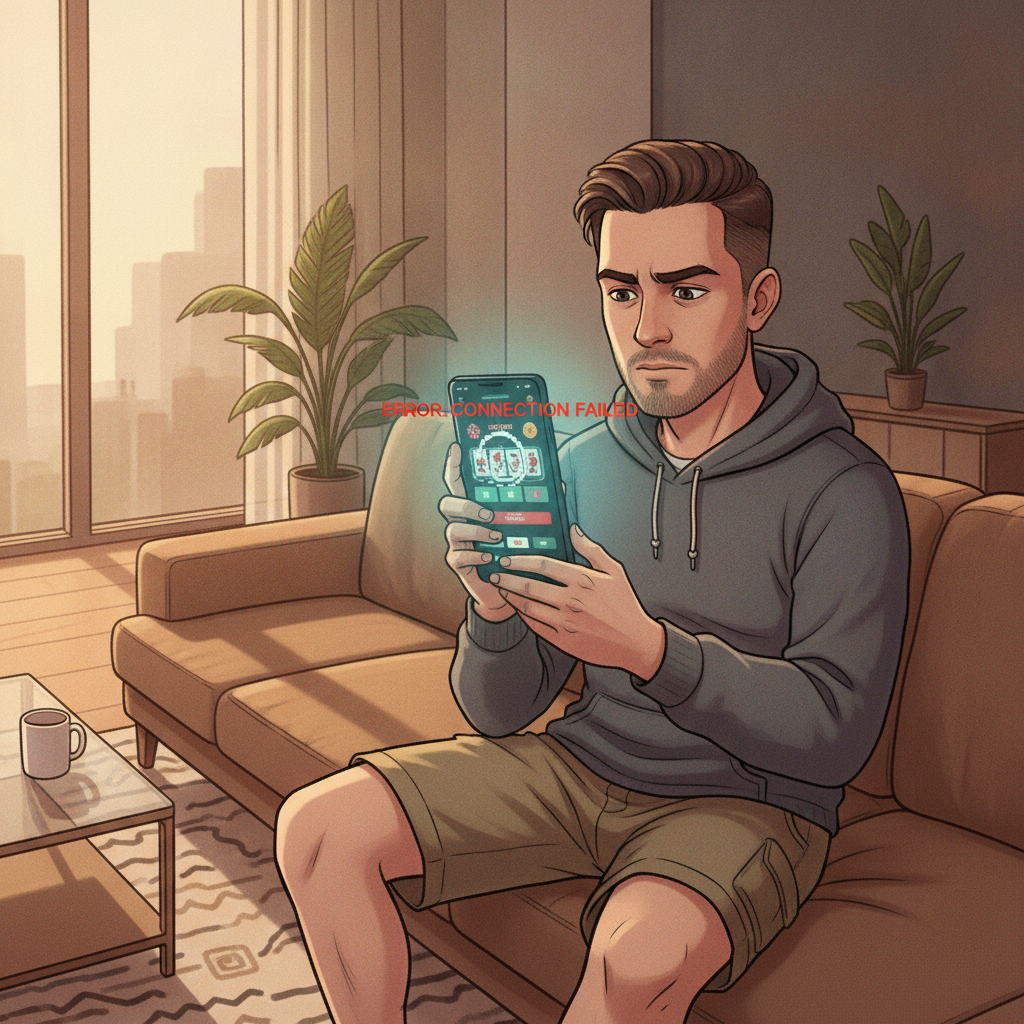
The VM Blast Android app can freeze, crash or display a white screen when you're trying to check your cashout or place a bet. This guide walks through the most common fixes for "app keeps stopping" messages, loading errors and update problems on Android devices.
This content is for Filipino players aged 21 and over. If you're experiencing problems with gambling, contact the National Center for Mental Health crisis hotline at 1553 (toll-free, 24/7).
Force-Stopping and Clearing Cache on Android
When the VM Blast app freezes or won't load past the splash screen, clearing the app cache usually fixes the issue without deleting your login credentials or saved settings.
Step-by-step:
- Open Settings on your Android phone.
- Tap Apps or Application Manager (wording varies by phone model).
- Scroll down and tap VM Blast.
- Tap Storage or Storage & cache.
- Tap Clear cache first. This removes temporary files that may be corrupted.
- Go back and tap Force stop to fully close the app.
- Reopen VM Blast from your home screen.
If clearing the cache doesn't solve the problem, return to the same Storage menu and tap Clear data or Clear storage. This resets the app completely—you'll need to log in again with your username and password, but it often resolves persistent white-screen or loading-loop issues.
What gets deleted:
- Clear cache: Temporary image files, game thumbnails, and session data. Your login stays saved.
- Clear data: Everything, including saved login. You'll log in fresh as if you just installed the app.
Try cache first; only use Clear data if the problem continues.
Reinstalling the APK When You See 'App Keeps Stopping'
The "Unfortunately, VM Blast has stopped" or "App keeps stopping" pop-up usually means a corrupted installation file or a failed update. Reinstalling the APK from scratch is the most reliable fix.
How to uninstall and reinstall:
- Long-press the VM Blast app icon on your home screen.
- Tap Uninstall or drag the icon to the uninstall area at the top of the screen.
- Confirm the uninstall.
- Open your mobile browser (Chrome, Firefox, or your default browser).
- Visit the official VM Blast site and locate the Download Android App or APK Download button. Make sure you're on the legitimate domain to avoid fake APK files.
- Tap the download link. Your browser may warn that APK files can harm your device—this is a standard Android message for any APK installed outside Google Play. Tap OK or Download anyway.
- Once the file finishes downloading, open your Downloads folder or tap the notification.
- If you see "Install blocked," go to Settings > Security > Install unknown apps and enable permission for your browser.
- Tap Install and wait for the process to complete.
- Open the newly installed VM Blast app and log in.
Why this works:
Reinstalling writes a fresh copy of all app files, replacing any corrupted code or incomplete update files. It also clears out residual data from failed installs.
If you still see crashes after a clean reinstall, the problem may be with your Android version. VM Blast typically requires Android 5.0 or higher. Check your phone's Settings > About phone > Android version to confirm compatibility.
Checking Internet Connection: Mobile Data vs Wi-Fi Issues
VM Blast streams live dealer games, sports odds and slot graphics in real time. A weak or unstable connection can cause the app to hang on a loading screen, show a white screen, or disconnect mid-session.
Diagnose connection problems:
- Test your speed: Open your mobile browser and visit a simple website like Google. If pages load slowly or time out, the issue is your internet, not the app.
- Switch between mobile data and Wi-Fi: If you're on Wi-Fi, disable it and use mobile data (or vice versa). Sometimes a specific network has DNS or firewall blocks.
- Restart your router or modem: Unplug your Wi-Fi router for 10 seconds, then plug it back in. This clears temporary routing issues.
- Check your signal strength: In Metro Manila, Smart, Globe and DICI coverage is generally strong, but rural provinces may have weak 4G. If your signal bars are low, move closer to a window or go outside.
- Disable VPN or proxy apps: Some VPN services interfere with casino app connections. Turn off any VPN and try again.
Common symptoms by connection type:
- Weak mobile data: Games load slowly, live dealer video buffers, sportsbook odds freeze.
- Unstable Wi-Fi: Frequent "Connection lost" pop-ups, repeated logouts, failed bet submissions.
- Blocked network: White screen on launch, infinite loading spinner, or "Cannot connect to server" error.
If you're on a corporate or school Wi-Fi network, the firewall may block casino domains. Switch to mobile data or a personal hotspot.
When to Switch to Mobile Browser Version as Backup
If the VM Blast Android app continues to crash after trying all fixes, the mobile browser version is a stable fallback. You'll access the same account, see the same balance, and use the same GCash or Maya cashout options—without installing anything.
How to use the browser version:
- Open Chrome, Firefox, or your default Android browser.
- Type the VM Blast web address into the URL bar.
- Log in with your username and password. If you use biometric login in the app, you'll need to enter your password manually in the browser.
- Bookmark the page for quick access: tap the menu icon (three dots) and select Add to Home screen. This creates a shortcut that looks and works like an app icon.
Browser vs APK: what's different
| Feature | Android APK | Mobile Browser |
|---------|-------------|----------------|
| Push notifications | Yes (bet updates, promo alerts) | No |
| Biometric login | Yes (fingerprint, face unlock) | No |
| Offline cache | Yes (faster loading) | No |
| Install required | Yes | No |
| Works on any device | Android only | Android, iOS, desktop |
The browser version uses slightly more data because it doesn't cache game graphics locally, but it's reliable when the APK has persistent problems.
You can switch back to the app anytime—your account, balance and transaction history are stored on VM Blast's server, not your device.
Additional Troubleshooting Tips
White screen on launch:
- Wait 20–30 seconds. Sometimes the app is loading in the background, especially on older phones.
- If the screen stays white, force-stop the app and clear cache (see first section).
- Check if VM Blast has scheduled maintenance. The platform occasionally takes the app offline for updates, usually announced on their Facebook page or via SMS.
"Update required" pop-up that won't go away:
- Uninstall the current app version.
- Re-download the latest APK from the official VM Blast site.
- Do not use old APK files saved in your Downloads folder—always grab the newest version.
App crashes only during live dealer games:
- Lower your video quality in the game settings (tap the gear icon in the live casino lobby).
- Close other apps running in the background to free up RAM.
- Restart your phone to clear memory.
Login loop or "Session expired" errors:
- Clear app data (Settings > Apps > VM Blast > Storage > Clear data).
- Log in again. If the loop continues, reset your password through the "Forgot password" link on the login screen.
When to Contact VM Blast Support
If none of these fixes work, or if the app crashes only when you try to withdraw via GCash or Maya, the issue may be on the platform's side. Contact VM Blast customer support with these details:
- Your Android version (Settings > About phone > Android version)
- Your phone model (e.g., Samsung Galaxy A13, Xiaomi Redmi Note 11)
- The exact error message or screenshot of the crash
- What you were doing when the app stopped (e.g., "Crashed when I tapped Withdraw")
Most operators respond faster via live chat than email. Look for the chat icon in the mobile browser version if the app won't open.
Responsible Gambling Reminder
VM Blast is for players aged 21 and over. Only bet money you can afford to lose. If you find yourself chasing losses, hiding your play from family, or borrowing money to gamble, reach out for help:
- NCMH Crisis Hotline: 1553 (toll-free, 24/7)
- In Touch Community Services: (02) 8893-7603
Set deposit limits in your account settings and take regular breaks. Gambling should be entertainment, not a way to make money or solve financial problems.
About this guide: This is an independent help resource for existing VM Blast users in the Philippines. We are not affiliated with VM Blast's operators. For official support, contact VM Blast directly through their site or app.