VM Blast Failed Withdrawal: Why Your GCash or Bank Cashout Was Rejected
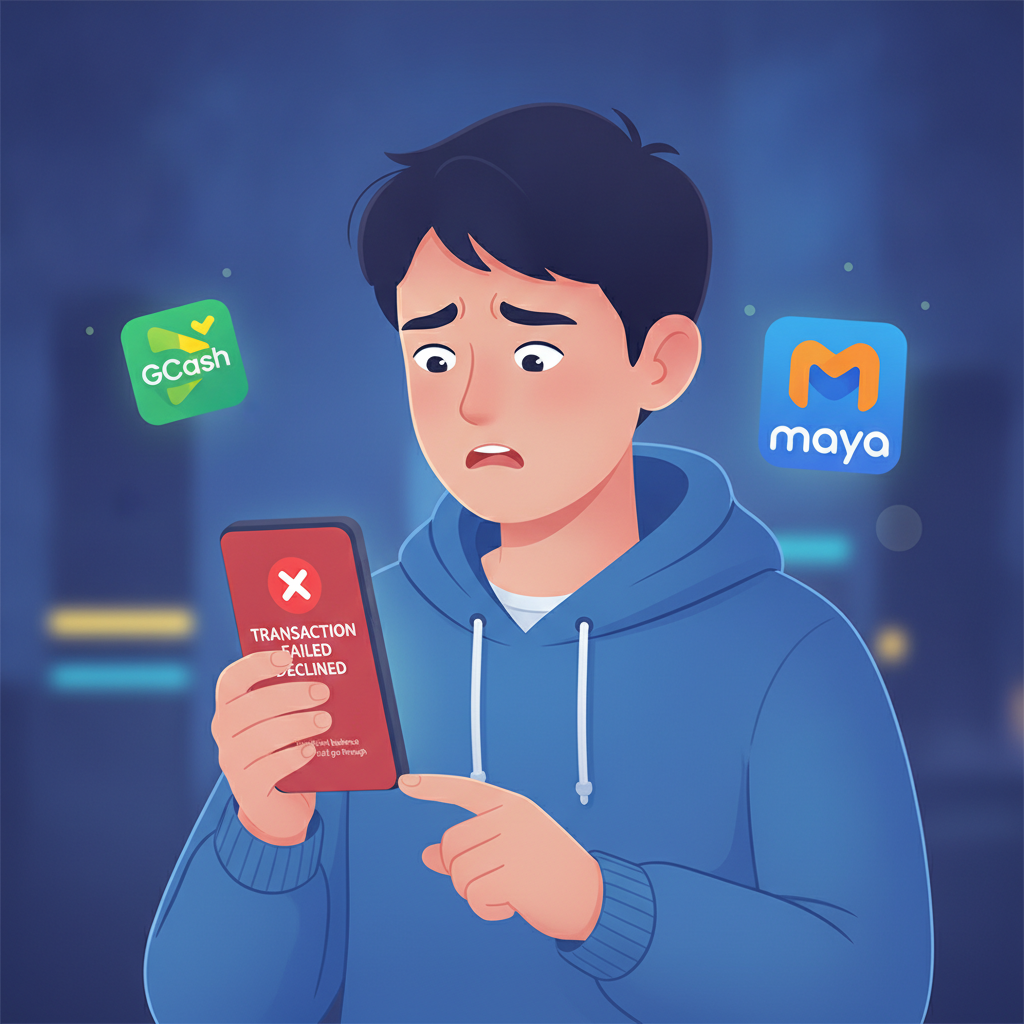
You requested a VM Blast withdrawal to GCash, Maya, or your bank account, but it was declined or marked as failed. This guide explains the most common reasons VM Blast cashouts get rejected and what you need to do to fix the problem and resubmit.
This content is for players aged 21 and over. If you or someone you know is struggling with gambling, contact the National Council on Problem Gambling or use VM Blast's self-exclusion and deposit-limit tools.
Name Mismatch Between VM Blast Account and E-Wallet or Bank
The most frequent reason VM Blast withdrawals fail is a name mismatch. Philippine regulations and anti-money-laundering rules require that the name registered on your VM Blast account exactly matches the name on your GCash, Maya, or bank account.
What Causes a Name Mismatch
- You registered VM Blast using a nickname, shortened first name, or alias instead of your full legal name as it appears on your government ID.
- Your e-wallet or bank account is in a family member's or friend's name, not yours.
- You have a middle initial on one account but wrote out your full middle name on the other, or you included suffixes (Jr., III) on one platform but not the other.
- Typos during registration—extra spaces, misspelled surnames, or swapped first and last names.
How to Fix It
- Check your VM Blast account name: Log in and navigate to your profile or account settings. Compare the name displayed there with your GCash, Maya, or bank account name.
- Verify your e-wallet details: Open GCash or Maya and check the registered account name. If you haven't completed verification (see below), do that first.
- Contact VM Blast support: If the names don't match, you'll need to update your VM Blast account. Prepare a clear photo or scan of your valid government ID (passport, driver's license, UMID, or Philippine National ID) and send it to VM Blast customer support via live chat or email. Explain that you need to correct your registered name.
- Wait for verification: VM Blast support will review your ID and update your account name. This can take one to three business days.
- Resubmit your withdrawal: Once your account name matches your e-wallet or bank, submit a new cashout request.
Important: VM Blast will not process withdrawals to accounts that don't belong to you. Third-party cashouts are prohibited for security and compliance reasons.
Insufficient Balance After Deducting Fees or Unmet Play-Through
Another common reason for rejection is that your available balance is lower than the amount you tried to withdraw, or you haven't yet met the required play-through (wagering) conditions.
Withdrawal Fees
VM Blast may apply a small service fee to certain withdrawal methods, especially for amounts below a minimum threshold. For example:
- GCash and Maya withdrawals below PHP 500 may incur a PHP 15–25 processing fee.
- Bank transfers via InstaPay or PESONet may have a flat PHP 25–50 fee, depending on your bank.
If you request a PHP 300 withdrawal and the fee is PHP 25, VM Blast will attempt to deduct PHP 325 from your balance. If you only have PHP 300 available, the transaction fails.
Unmet Wagering or Play-Through Requirements
If you claimed a deposit bonus, free spins, or cashback offer, VM Blast requires you to wager a certain multiple of the bonus amount before you can withdraw. Common play-through requirements range from 10× to 30× the bonus.
Example: You deposited PHP 200 and received a 100% bonus (PHP 200). Total balance: PHP 400. If the wagering requirement is 20×, you must place bets totaling PHP 4,000 (20 × PHP 200 bonus) before the bonus funds convert to withdrawable cash. If you try to cash out before completing that turnover, the system will reject your request.
How to Fix It
- Review your balance: Log in to VM Blast and check your main balance and any bonus or locked balance. Make sure the amount you're withdrawing, plus any fees, does not exceed your available (unlocked) balance.
- Check bonus terms: If you accepted a promotion, go to the promotions or bonus history section to see your remaining wagering requirement. Complete the turnover by playing eligible games (usually slots count 100%, while live dealer and sports bets may count less).
- Request a smaller amount: If fees are the issue, try withdrawing a slightly larger sum or wait until you've wagered enough to unlock bonus funds.
- Contact support for a balance breakdown: If you're unsure why funds are locked, ask VM Blast support for a detailed statement showing your deposit, bonus, wagering progress, and withdrawable balance.
E-Wallet Account Limits or Unverified GCash or Maya Status
Even if your VM Blast account is in good standing, your GCash or Maya account itself can block incoming transfers if it's unverified or has reached transaction limits.
Unverified GCash or Maya Accounts
- GCash Basic accounts (unverified) have a monthly incoming limit of PHP 100,000 and a maximum wallet balance of PHP 100,000. If you're near those caps, GCash will reject additional credits.
- Maya standard (unverified) accounts have similar monthly and per-transaction limits.
An unverified account also restricts certain features. Some operators, including VM Blast, may refuse to send withdrawals to unverified e-wallets due to compliance policies.
How to Verify Your E-Wallet
GCash:
- Open the GCash app and tap your profile icon.
- Select "Verify Now" or "Get Fully Verified."
- Upload a clear photo of your valid government ID and a selfie.
- Wait for approval (usually a few minutes to 24 hours).
Fully verified GCash accounts enjoy a PHP 500,000 monthly incoming limit and higher wallet balance cap.
Maya:
- Open the Maya app and go to Settings or Profile.
- Tap "Upgrade Account."
- Submit your government ID and complete the selfie verification.
- Approval typically takes a few hours.
Verified Maya accounts have higher transaction and balance limits.
Monthly or Daily Limits
If you've already received multiple withdrawals this month, check that you haven't hit your e-wallet's monthly incoming limit. GCash and Maya both display your current usage in the app's transaction history or settings.
How to Fix It
- Verify your GCash or Maya account if you haven't done so already.
- Check your monthly limit: Review your e-wallet transaction history. If you're near the cap, wait until the next billing cycle (usually the first of the month) or upgrade to a fully verified account for higher limits.
- Use an alternative method: If your GCash limit is exhausted, consider withdrawing to Maya or linking a bank account for InstaPay or PESONet transfer instead.
How to Resubmit Your VM Blast Withdrawal and What Info Support Needs
Once you've identified and resolved the issue, you can resubmit your cashout request.
Steps to Resubmit
- Log in to VM Blast on your mobile browser or app.
- Go to the cashier or withdrawal section.
- Select your preferred method: GCash, Maya, InstaPay, or PESONet.
- Enter the exact account name and number that matches your verified VM Blast profile.
- Choose the withdrawal amount (must be within VM Blast's minimum and maximum limits and not exceed your available balance after fees).
- Submit the request and note the transaction reference number.
VM Blast typically processes GCash and Maya withdrawals within 15 minutes to 2 hours during business hours, though it can take up to 24 hours during peak periods or weekends. InstaPay bank transfers usually complete within the same banking day if submitted before the cut-off time (often 5 PM), while PESONet can take one to two banking days.
What Information VM Blast Support Needs
If your withdrawal fails again or remains stuck in "pending" status for more than 24 hours, contact VM Blast support and provide:
- Your VM Blast username or registered email
- The transaction or reference number from your failed or pending withdrawal
- The exact error message (if any) displayed when the cashout was declined
- Screenshots of your VM Blast withdrawal history and your e-wallet or bank account details (blur sensitive information like full account numbers if sharing in chat)
- Proof of verification: If you recently updated your name or verified your e-wallet, mention that and provide the date
VM Blast support is available via live chat (usually 24/7) and email. Response times for email can range from a few hours to one business day. Live chat is faster for urgent issues.
What to Avoid
- Do not submit multiple withdrawal requests for the same amount while one is still pending. This can confuse the payment team and delay processing.
- Do not use a different e-wallet or bank account each time you withdraw. Stick to one verified account in your name to avoid triggering additional security checks.
- Do not ignore verification requests. If VM Blast asks for ID or proof of address, respond promptly. Delays in submitting documents will freeze your withdrawal.
Responsible Gambling Reminder (21+ Only)
VM Blast is intended for players aged 21 and over. Withdrawing winnings should be straightforward, but gambling always carries risk. Never deposit or wager more than you can afford to lose.
If you find yourself chasing losses, borrowing money to play, or feeling anxious about your betting, take a break. VM Blast offers deposit limits, session time reminders, and self-exclusion options in the account settings. You can also reach out to organizations like the National Council on Problem Gambling for confidential support.
Set a budget before you play, treat any winnings as a bonus, and remember that cashouts are only possible when you play responsibly and within your means.
By understanding why VM Blast withdrawals fail—name mismatches, fees or unmet wagering, and e-wallet limits—you can fix the problem quickly and get your funds. Double-check your account details, verify your GCash or Maya, and contact support with the right information if you need help. Good luck, and play responsibly.